
Your website is one of your most valuable business assets. It works around the clock to attract leads, book calls, support sales, and build trust before a prospect ever speaks to your team. But one preventable security issue can wipe out that value fast. A hacked WordPress site doesn’t just create a technical mess. It can take your forms offline, redirect traffic, damage rankings, and make legitimate customers question whether they should do business with you.
That risk is bigger than many owners realize. According to a WordPress security audit overview, 90% of WordPress security issues are tied to plugins, 6% to themes, and 4% to core software, which is why disciplined plugin management matters more than updating WordPress itself. The same review notes that the ecosystem saw 11,334 new vulnerabilities in 2025, a 42% increase from 2024 (SentinelOne WordPress security audit breakdown). The issue isn’t whether vulnerabilities exist. They do. The question is whether your business has a process to deal with them before they affect revenue.
This isn’t about fear. It’s about control, uptime, and protecting the online channels that generate calls and customers. The WordPress security best practices below aren’t just a technical checklist. They’re part of a business continuity plan for serious SMBs.
If you’re not sure whether your site is exposed, book a complimentary security audit with our Miami team before a small issue turns into a costly outage.
Table of Contents
- 1. Keep WordPress Core, Themes, and Plugins Updated
- 2. Implement Strong User Authentication and Role Management
- 3. Use Secure, Reputable Hosting with Regular Backups
- 4. Harden WordPress Configuration and Disable Unnecessary Features
- 5. Deploy a Web Application Firewall WAF and DDoS Protection
- 6. Use Security and Monitoring Plugins Wordfence iThemes Security Sucuri
- 7. Secure Database with Strong Credentials and Prefix Changes
- 8. Configure Proper File Permissions and Directory Structure
- 9. Implement Secure Content Delivery Network CDN and HTTPS Everywhere
- 10. Regular Security Audits Penetration Testing and Incident Response Planning
- Top 10 WordPress Security Practices Comparison
- From Checklist to Action The Smart Way to Secure Your Site
1. Keep WordPress Core, Themes, and Plugins Updated
If you only do one thing this week, do this. Outdated software is where most WordPress problems start, and plugin neglect is where many business owners lose control of the site they depend on for leads.
For a local business, the damage isn’t abstract. A vulnerable form plugin can stop quote requests. A broken checkout plugin can kill revenue overnight. An outdated booking add-on can leave customers with error pages instead of confirmations.
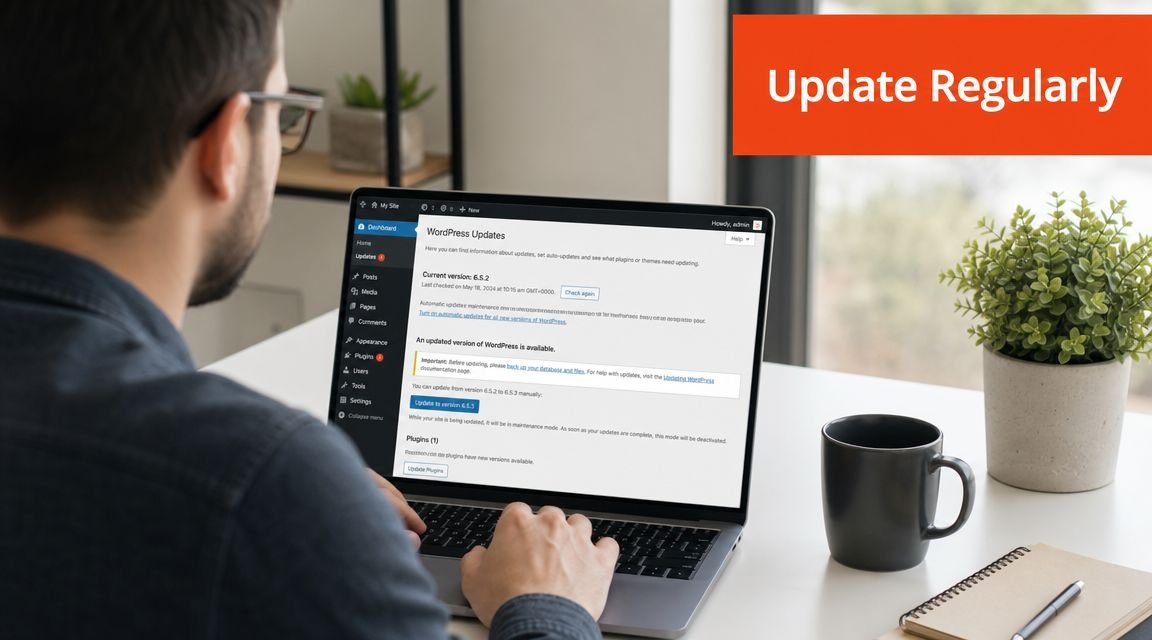
Patch speed matters more than patch intent
A practical benchmark is to patch WordPress core, theme, and plugin vulnerabilities within 24 hours of disclosure, with staged testing for business-critical sites (WordPress security patch timing guidance). If you’re waiting for a convenient time, you’re already behind.
Practical rule: Security updates belong on a defined maintenance schedule, not on someone’s mental to-do list.
Use a staging environment before pushing major changes live. That’s especially important if your site runs WooCommerce, payment tools, appointment systems, or CRM integrations.
A disciplined update workflow should include:
- Remove unused plugins completely: Deactivated doesn’t mean harmless. If you don’t need it, delete it.
- Turn on auto-updates selectively: Core and security-sensitive plugins should never sit untouched.
- Track what changed: Keep a simple maintenance log so you know what was updated and when.
- Use a managed build process: If your site supports sales, lead generation, or customer logins, treat updates like operations, not housekeeping.
If your team doesn’t have time to monitor updates, test compatibility, and resolve breakage, outsource it to a provider that handles WordPress development and maintenance in Miami. That’s often cheaper than one emergency recovery call after an avoidable exploit. A documented effective patch management policy is what separates controlled upkeep from reactive scrambling.
2. Implement Strong User Authentication and Role Management
Most WordPress break-ins don’t start with movie-style hacking. They start with a weak password, a shared admin login, or a former employee whose access was never removed.
If three people only need to edit pages, none of them should be administrators. If an outside freelancer only needs to update blog posts, they shouldn’t be able to install plugins, change forms, or touch customer data.
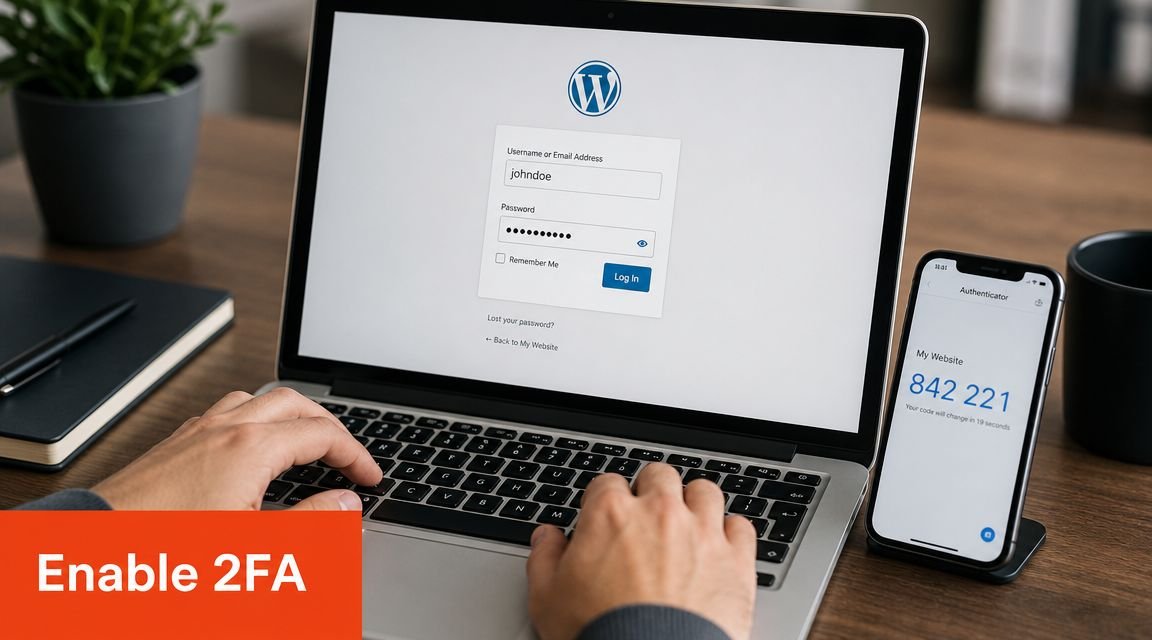
Access control protects revenue, not just logins
WordPress gives you role separation for a reason. Use it. Administrators should be rare. Editors should handle content. Shop managers should handle store operations. Everyone else gets the minimum access needed to do their work.
Business owners often make expensive mistakes. They give broad access because it’s faster in the moment. Then someone edits the wrong file, deletes a plugin, exposes form entries, or creates a conflict that knocks out a lead funnel.
Set a clear policy:
- Require strong passwords: Use a password manager and stop reusing credentials across tools.
- Mandate two-factor authentication: Every admin and editor account should have it enabled.
- Remove the default admin username: Predictable usernames make brute-force attacks easier.
- Offboard fast: When someone leaves, remove access the same day.
- Review users on a schedule: Old accounts are silent risk.
A business site should reflect your org chart. If someone doesn’t need admin rights to do their job, they shouldn’t have admin rights.
A law firm, medical office, or e-commerce brand has more to lose here than a brochure site. Access mistakes can affect customer trust, compliance exposure, and day-to-day operations. If your team is growing and multiple vendors touch the site, role management needs oversight, not guesswork. That’s one of the first things a serious support partner should lock down for you.
3. Use Secure, Reputable Hosting with Regular Backups
Cheap hosting creates expensive problems. If your host treats security as an add-on instead of part of the platform, you’re carrying unnecessary risk every day your site is live.
For a business site, hosting isn’t just a technical choice. It affects speed, uptime, backup quality, malware handling, and how fast you can recover if something goes wrong.
Backups only count if restores work
Many owners feel protected because backups exist somewhere in the account. That’s not enough. Strong guidance on WordPress security stresses offsite backups and, above all, testing the restore process because having a backup and having a usable backup are not the same thing (WordPress backup and restore testing guidance).
That matters most when revenue is on the line. If your site runs bookings, quote requests, online orders, or paid traffic campaigns, the key question isn’t “Do we back up?” It’s “How quickly can we restore cleanly without breaking the site?”
Use hosting that gives you:
- Managed security features: Firewall support, malware scanning, SSL management, and account isolation.
- Offsite backups: A copy stored away from the production server.
- Easy restore options: One-click restore is good. A tested restore process is better.
- Staging environments: You need a safe place to test updates and repairs.
- Reliable support access: When something breaks, response time matters.
If performance is already hurting conversions, security and speed should be fixed together. Our team often addresses both at once through website loading speed improvements, because a slow site and a fragile site usually share the same operational neglect. Before you sign with any host, review the critical web hosting decisions business owners should compare.
Midway through this checklist, the pattern should be clear. The businesses that stay online don’t rely on luck. They rely on process. If you want that process handled for you, this is the right time to request a consultation.
4. Harden WordPress Configuration and Disable Unnecessary Features
WordPress can be secure, but default settings often expose more than they should. Attackers look for easy wins. You don’t need to hand them version details, editable code from the dashboard, or open features you never use.
Hardening isn’t flashy. It is effective. Small configuration changes reduce the attack surface and make your site harder to probe, abuse, or modify.
Default settings leave clues for attackers
One of the simplest changes is disabling file editing from the WordPress dashboard. If an attacker gets into an admin account, dashboard file editing gives them a direct path to inject malicious code into your site. Shut that door.
Also review whether you need XML-RPC, open REST endpoints, or broad file upload methods. Many sites don’t. Yet those features remain enabled because no one ever audited the setup after launch.
Prioritize changes like these:
- Disable dashboard file editing: Prevents direct code edits through the admin area.
- Use SFTP instead of FTP: Encrypted transfer should be the baseline.
- Hide unnecessary version clues: Don’t advertise your stack.
- Tighten wp-config and server settings: Sensitive files should get extra protection.
- Remove features you don’t use: Convenience for no one is risk for everyone.
A restaurant group running online orders doesn’t need a bloated setup loaded with old modules from past redesigns. A professional services site with intake forms doesn’t need every remote publishing feature enabled by default. Clean builds are safer builds.
This is where experienced development support matters. Good agencies don’t just launch pages. They harden environments, standardize settings, and reduce exposure behind the scenes. If your current provider only talks design and ignores infrastructure, that’s a warning sign. We build and maintain hardened business sites through our web development services.
5. Deploy a Web Application Firewall WAF and DDoS Protection
A web application firewall sits between your site and incoming traffic. That’s where you want a filter. You don’t want every malicious request reaching WordPress and hoping a plugin catches it later.
A WAF helps block known attack patterns, suspicious requests, and abusive traffic before it consumes server resources or reaches vulnerable parts of the application. For lead generation sites, that can be the difference between staying online and losing inquiries during a traffic spike or attack burst.

Put a filter in front of your site
Cloudflare, Sucuri, Wordfence, and enterprise options like Akamai or Imperva all play in this space. The right choice depends on the site’s complexity, traffic profile, and whether you’re protecting a brochure site, a WooCommerce store, or a marketing funnel tied to paid ads.
A Miami law firm running Google Ads can’t afford to have landing pages fail because bots flood the server. A hospitality brand can’t have booking pages dragged down during a promotion. A WAF is not optional once your site becomes a meaningful sales channel.
Use it correctly:
- Start with monitored deployment: Watch what legitimate traffic looks like before tightening rules.
- Whitelist trusted office or VPN IPs: Avoid locking out your own team.
- Review blocked traffic logs: False positives happen, and you need to catch them.
- Pair it with DDoS protection: Filtering malicious requests and absorbing floods are related, but not identical.
- Apply stricter rules to login and form endpoints: Those areas take the most abuse.
Your firewall should protect revenue paths first. Login pages, checkout, quote forms, and booking flows deserve stricter controls than low-risk pages.
For businesses running paid traffic, a WAF protects more than infrastructure. It protects ad spend. Every minute a landing page is unstable, you’re paying for clicks that can’t convert.
6. Use Security and Monitoring Plugins Wordfence iThemes Security Sucuri
No single plugin makes a site secure. Good security plugins do make detection faster, visibility better, and routine hardening easier to manage.
That matters because many WordPress compromises don’t announce themselves right away. The homepage may look normal while spam pages get indexed, admin users get added unnoticed, or files change in the background.
Monitoring shortens the time between breach and response
Wordfence, iThemes Security, and Sucuri are established tools that can help with malware scanning, login protection, file change alerts, and activity logs. They work best as a second layer behind secure hosting and a firewall, not as a substitute for either.
For a business owner, the practical value is simple. You need to know when something changes that shouldn’t have changed. You also need a record of who logged in, what was modified, and whether the warning is real.
A useful setup includes:
- Scheduled malware scans: Run them during off-peak hours so they don’t interfere with user experience.
- File integrity monitoring: Watch core files, configuration files, and high-risk directories.
- Login alerts: Flag unfamiliar admin access attempts quickly.
- Activity logging: Keep a record for troubleshooting and incident review.
- Automatic plugin updates for the security tool itself: Attackers target protective tools too.
An e-commerce owner should know if checkout files changed unexpectedly. A service business should know if form handlers or redirect rules were altered. Those are business events, not just technical events.
If your WordPress site sells online, security monitoring should be part of the build from day one. We include that thinking in WordPress e-commerce development, because stores need protection around transactions, customer data, and uptime. If your current setup only reacts after something breaks, it’s incomplete.
7. Secure Database with Strong Credentials and Prefix Changes
Your WordPress database holds the essential business value. Content, users, settings, order details, form entries, and operational data all live there. If an attacker reaches the database, they don’t need to deface your site to damage the business.
A surprising number of sites still rely on weak database hygiene. Shared credentials, predictable table prefixes, broad privileges, and poorly documented access are common problems.
Your database is the business record
Start with strong, unique credentials for every site. Don’t reuse root access. Don’t share one database user across multiple properties. And don’t leave installation defaults in place if you’re setting up a new build.
Changing the default table prefix from wp_ won’t solve every problem, but it removes one predictable element from the environment. That’s worth doing during setup, along with limiting the database user to only the permissions required.
Lock down the basics:
- Use a unique database user for each site: Separation reduces blast radius.
- Store credentials in a password manager: Not in chat threads, email, or a plain text note.
- Limit host access where possible: Restrict connections to where they’re needed.
- Avoid root for routine operations: Administrative convenience is not a security strategy.
- Document the environment securely: You need recoverability without casual exposure.
A business that depends on WordPress for intake forms, sales, or client communication can’t afford sloppy credential handling. Database security isn’t glamorous, but when something goes wrong, it’s often the difference between contained damage and total rebuild.
8. Configure Proper File Permissions and Directory Structure
File permissions control who can read, write, and execute files on the server. Get them wrong and an attacker who finds one weak point can often turn that into something much worse.
This issue shows up often on rushed launches, budget hosting setups, and sites that have been passed between multiple developers. One person opens permissions to solve a deployment problem, no one resets them, and the risk stays in place for months.
Bad permissions turn a minor issue into full compromise
A vulnerable plugin is bad. A vulnerable plugin combined with loose file permissions is worse, because it may give an attacker a way to upload, modify, or persist malicious files more easily.
For most WordPress environments, permissions should be restrictive enough to prevent unauthorized changes while still allowing the application to function normally. Sensitive files like wp-config.php deserve special attention.
Use this section as a review prompt:
- Check files and directories separately: They don’t need the same permissions.
- Audit after migrations and updates: Permission drift is common after environment changes.
- Lock down configuration files: They should have tighter access than media directories.
- Avoid broad write permissions: Convenience settings create long-term exposure.
- Use SFTP or SSH for changes: That gives you better control and traceability.
If your team needs a visual walkthrough, this short video is a useful primer before making server-level changes.
A contractor with limited Linux experience can accidentally leave a site exposed. That’s why businesses with serious lead flow usually move these tasks into managed support instead of letting every freelancer touch production settings directly.
9. Implement Secure Content Delivery Network CDN and HTTPS Everywhere
If your site still serves any meaningful page over HTTP, fix that now. Login pages, forms, checkout steps, and user sessions should all be protected by HTTPS. Not some of them. All of them.
Customers notice security cues before they read your copy. Browser warnings, mixed-content issues, and sloppy certificate management create doubt immediately. Doubt lowers conversions.
Trust starts before the page finishes loading
A CDN helps with more than performance. Services like Cloudflare also support HTTPS delivery, caching, and edge-level protection that reduce load on your origin server. That improves resilience while making pages load faster for users in different locations.
For local businesses, that connection between speed and trust matters. If someone clicks your ad, lands on a slow or insecure page, and sees warnings or broken assets, you’ve paid to create friction.
Handle the essentials:
- Redirect all HTTP traffic to HTTPS: No mixed setup, no exceptions.
- Fix mixed content issues fully: Images, scripts, embeds, and forms all need secure URLs.
- Set certificate renewal on autopilot: Expired SSL certificates kill trust fast.
- Use a CDN with security features: Speed and protection work better together.
- Test key conversion pages after deployment: Home, contact, service pages, checkout, and lead forms.
A secure CDN setup also complements performance work. If your business depends on visibility, rankings, and conversion rate, security and speed shouldn’t be handled in separate silos. We often pair them using website speed optimization tools and performance improvements so the site feels trustworthy and fast at the same time.
10. Regular Security Audits Penetration Testing and Incident Response Planning
The businesses that recover fastest from security issues usually had a plan before anything happened. Everyone else wastes critical time deciding who owns the problem, where backups live, and whether the issue is real.
You need periodic audits because tools miss things. You need penetration testing because assumptions fail under pressure. And you need an incident response plan because downtime is expensive even when the breach is contained quickly.
You need a response plan before you need a response
An audit should answer practical questions. Are plugins still justified? Are admin accounts controlled? Are restore procedures tested? Are logs reviewed? Are backups isolated? Are there old staging sites still exposed online?
Penetration testing adds pressure to the environment in a controlled way. It helps uncover weak configurations, access flaws, and overlooked routes an attacker might exploit.
A useful incident plan includes:
- Detection steps: How you’ll recognize suspicious activity and who gets alerted.
- Containment actions: What gets disabled, isolated, or blocked first.
- Technical ownership: Who handles hosting, WordPress, DNS, email, and backups.
- Communication rules: Who informs staff, customers, or stakeholders if needed.
- Recovery validation: How you’ll confirm the site is clean and functioning properly before resuming normal operations.
When a business has no response plan, the first hours of an incident get wasted on confusion. That’s often where the biggest losses happen.
If your company runs ads, depends on organic search, or books appointments through the site, annual security reviews and documented recovery procedures are an essential part of responsible operations. Many owners determine it’s more cost-effective to hire an expert. They’re right.
Top 10 WordPress Security Practices Comparison
| Practice | Implementation complexity | Resource requirements | Expected outcomes | Ideal use cases | Key advantages |
|---|---|---|---|---|---|
| Keep WordPress Core, Themes, and Plugins Updated | Low–Medium, automatable but needs testing | Low ongoing time; staging and rollback tools | Patches known vulnerabilities; fewer zero-day exposures | All sites, especially multi-client managed sites | Eliminates known vulnerabilities; improves stability |
| Implement Strong User Authentication and Role Management | Medium, policy + 2FA and role setup | Moderate, 2FA plugins, training, account audits | Reduces account takeover and insider risk | Multi-user sites, e-commerce, professional services | Granular access control; audit trails; compliance help |
| Use Secure, Reputable Hosting with Regular Backups | Low–Medium, provider selection and config | High, premium hosting costs, backup storage | Improved uptime, rapid recovery from breaches | High-availability e-commerce, booking systems, business-critical sites | Server-level protections, automated backups, 24/7 support |
| Harden WordPress Configuration and Disable Unnecessary Features | Medium–High, requires code/config edits | Low–Moderate, developer time, staging | Reduced attack surface and reconnaissance vectors | Sites with custom code or limited DevOps expertise | Strong security gains with minimal user impact |
| Deploy a Web Application Firewall (WAF) and DDoS Protection | Low–Medium, DNS/certificate changes and tuning | Moderate, subscription fees and monitoring time | Blocks attacks before server; mitigates DDoS and exploits | E-commerce, high-traffic sites, PCI-reliant services | Stops attacks pre-server; CDN caching benefits |
| Use Security and Monitoring Plugins (Wordfence, iThemes, Sucuri) | Low, install and configure plugins | Low–Moderate, plugin fees, scan overhead | Malware detection, intrusion alerts, file integrity checks | Small–medium sites, agencies, multisite installs | Adds detection layer, forensic logs; free tiers available |
| Secure Database with Strong Credentials and Prefix Changes | Medium, best done at install; disruptive later | Low, planning and credential management | Limits SQLi impact; reduces privilege escalation risk | New installs and sites storing sensitive data | Prevents default-target exploits; isolates DB access |
| Configure Proper File Permissions and Directory Structure | Medium, requires SSH/SFTP and correct ownership | Low–Moderate, server access and admin time | Prevents unauthorized file writes and uploads | VPS/dedicated/self-hosted environments | Simple, effective protection against file tampering |
| Implement Secure CDN and HTTPS Everywhere | Low, one-click SSL and CDN setup common | Low–Moderate, CDN costs, certificate automation | Encrypted traffic, improved speed and SEO | Public sites, e-commerce, SEO-focused businesses | Encrypts data, speeds delivery, increases trust |
| Regular Security Audits, Penetration Testing, and Incident Response Planning | High, external tests and documented runbooks | High, specialist fees, remediation effort | Identifies hidden vulnerabilities; improves preparedness | Regulated industries, large e-commerce, high-risk sites | Comprehensive risk discovery; compliance and response readiness |
From Checklist to Action The Smart Way to Secure Your Site
These WordPress security best practices cover the areas that matter most. Updates, access control, hosting, backups, hardening, monitoring, permissions, HTTPS, and response planning all work together. Ignore one layer and the others have to work harder. Ignore several and you’re relying on luck.
Can you handle this internally? Yes, if someone on your team has the technical skill, the discipline to review it consistently, and the time to deal with issues before they turn into outages. Most business owners don’t have that luxury. They have staff to manage, customers to serve, campaigns to run, and revenue goals to hit.
That’s why DIY security often costs more than it appears to cost. The expense isn’t just the plugin subscription or hosting add-on. It’s the missed leads when a form stops working. It’s the emergency cleanup when a vulnerable plugin gets exploited. It’s the hours spent diagnosing breakage after an update was delayed too long, then pushed without testing. It’s the reputational damage when a customer hits a warning page and leaves.
For SMBs in Miami, that’s a real business risk. Local competition is strong. Customers compare fast. A slow, broken, or compromised site doesn’t just create technical debt. It hands opportunities to competitors who are easier to trust.
A serious support partner should remove that burden. At VIP TECH CONSULTING, we provide ongoing website support, encompassing the work most businesses know they need but don’t want to manage alone. Our services include software updates, plugin oversight, backup validation, access control, security hardening, performance support, and a faster path to action when something looks wrong.
This also solves a common objection. Business owners often ask whether it’s worth hiring an expert if they can install a few plugins themselves. The answer is yes, because the primary value isn’t installing tools. It’s running a reliable process, catching issues early, avoiding avoidable downtime, and protecting the channels that generate leads and sales.
If your site is central to your marketing, security isn’t a side task. It’s part of operations. And if your current provider only reacts after a problem shows up, you’re carrying more risk than you need to.
Schedule your free, no-obligation security consultation with VIP TECH CONSULTING. We’ll review your current setup, identify the most important gaps, and recommend the right level of support for your business before those gaps turn into lost revenue.
If your WordPress site supports lead generation, online sales, bookings, or local visibility, don’t wait for a preventable issue to force action. Contact VIP TECH CONSULTING to schedule your free consultation and get a clear plan to secure, maintain, and strengthen the website your business depends on every day.