


Knowing how to set up Google Analytics 4 is the first step to stop guessing and start making data-driven decisions that grow your revenue. But if you’re struggling with marketing that feels busy but doesn't produce results, a broken or incomplete GA4 setup is often the culprit. Most businesses are flying blind, making budget decisions based on vanity metrics instead of the actions that actually generate leads and sales.
Without accurate data, you’re just throwing money at marketing channels and hoping something sticks. Choosing the wrong analytics setup can cost you thousands in wasted ad spend and missed opportunities, leaving you frustrated and behind your competition.
Why a Professional GA4 Setup Is Essential for Growth
A proper Google Analytics 4 setup is more than a technical task; it's the foundation of your entire digital growth strategy. It acts as your central command, turning anonymous website clicks into actionable business intelligence that shows you exactly what's working and what’s not.
This is especially true for businesses focused on generating leads through SEO, Local SEO, and Google Ads. A professional setup allows you to see how many phone calls, form submissions, and customers your marketing efforts are truly delivering.

The biggest change from the old system is the move to an event-based model. This is the key that unlocks the ability to track the specific, high-value actions that lead directly to revenue—something the old, session-based model struggled with.
To understand why this matters for your business, here’s a clear comparison.
Universal Analytics vs Google Analytics 4 Key Differences
| Feature | Universal Analytics (Old) | Google Analytics 4 (New) |
|---|---|---|
| Core Model | Session-based (groups of user interactions) | Event-based (every interaction is a standalone event) |
| User Tracking | Device-centric (struggled across devices) | User-centric (follows users across devices) |
| Mobile Apps | Required a separate property | Natively combines website and app data |
| Reporting | Many pre-built, rigid reports | Fewer standard reports, with a focus on custom exploration |
| Goals | Limited session-based goals | "Conversions" are simply events you flag as important |
This table shows that GA4 was built for modern business. It helps you track the complex journey a customer takes, from discovering you via Google Ads on their phone to contacting you from their desktop.
Tracking What Actually Drives Revenue
For a local business, this means you can finally stop obsessing over total traffic and start measuring interactions that generate real leads. Imagine a local contractor seeing exactly how many people clicked their "Request a Quote" button after finding them through a Google search. That’s the kind of data that justifies your marketing spend.
These are the moments that directly precede a phone call or a new customer inquiry. GA4 gives you the tools to measure that entire journey and prove the ROI of your digital marketing.
- For Service businesses: Measure every form submission, phone number click, and booked appointment to finally get a true cost-per-lead from your SEO and Google Ads campaigns.
- For E-commerce stores: Follow every step, from the first product view and "add to cart" click all the way to the final purchase, attributing sales to the right channel.
- For Local companies: Connect the dots between someone viewing your Google Business Profile, visiting your website, and then calling your office, proving the direct value of your local SEO.
A poor GA4 setup will feed you bad data. When you have bad data, you end up putting money into marketing channels that feel busy but produce no results. If you get stuck, our team is here to help you get the clarity you need. For more tips, check out our Google Analytics blog category.
Let's walk through the correct process to build a solid data foundation for your business.
Creating the GA4 Property
The first step is creating a property and a data stream. Think of the property as the new home for all your business insights, and the data stream as the main pipe bringing information from your website into that home.
Getting this foundation right is non-negotiable. A small misstep here can lead to reports you can't trust.
- Go to the Admin section (gear icon in the bottom-left) in your Google Analytics account.
- In the "Property" column, click the blue + Create Property button.
- Enter your business details. Use a clear property name like "Your Business Name – Website" to avoid confusion later.
- Set your reporting time zone and currency. This is crucial for aligning your data with your actual business day.
Configuring Your Data Stream
Once the property is created, GA4 will prompt you to set up a data stream. This is the critical link between your website and your new GA4 property.
- Choose Web as your platform.
- Enter your website’s URL (e.g.,
yourwebsite.com). - Give the stream a clear name, like "Your Business Name – Web Stream".
GA4 will then generate a unique Measurement ID (e.g., "G-XXXXXXXXXX"). This ID is the "address" for your data; without it, information from your website has no way of reaching your reports. Copy it and keep it safe.
Understanding Enhanced Measurement
One of the best features of GA4 is Enhanced Measurement, which is on by default. It immediately starts tracking common user interactions without any extra coding.
With this feature enabled, GA4 will automatically capture events like:
- Scrolls: When a user scrolls 90% of the way down a page, signaling content engagement.
- Outbound clicks: Clicks that take users away from your website.
- Site search: What visitors are typing into your website's search bar.
- File downloads: Tracks clicks on PDFs, brochures, or case studies.
- Video engagement: Tracks plays and completions for embedded YouTube videos.
For nearly every business we work with, we recommend leaving these enabled. They provide a rich layer of behavioral data that helps you understand if your content and lead magnets are effective. And if you need to manage user privacy, it's good to know how to handle data deletion requests in GA4.
How to Set Up Google Analytics 4 The Right Way
Now for the most important part: getting the tracking code onto your website. Getting this wrong is the most common failure point we see. It’s the difference between having sharp business insights and a dashboard full of meaningless numbers.
You have two main paths:
- Google Tag Manager (GTM): This is the professional standard and the method we recommend for any business serious about growth.
- Direct Code Installation (gtag.js): This involves adding a code snippet directly into your website's HTML.
Let's look at why GTM is the superior choice for businesses focused on lead generation and ROI.
Why Google Tag Manager Is the Smarter Choice
Google Tag Manager is a toolbox for all your website’s tracking codes ("tags"). Instead of relying on a developer every time you need to add a Google Ads conversion tag or a Meta Pixel, you can manage everything from one central, agile hub.
This future-proofs your marketing, allowing you to adapt quickly without touching your website's core code. For a business that needs to move fast and measure results from SEO and paid ads, this is a non-negotiable advantage.
Implementing GA4 with Google Tag Manager
If you have GTM on your site, adding GA4 is straightforward.
First, grab your Measurement ID from your GA4 property under Admin > Data Streams. It's the ID that starts with "G-".
Now, go to your Google Tag Manager container:
- Navigate to Tags and click New.
- Name your tag clearly, like "GA4 Configuration – All Pages".
- For Tag Configuration, choose the Google Tag option.
- Paste your "G-" Measurement ID into the Tag ID field.
- In the Triggering section, select Initialization – All Pages. This ensures the GA4 tag fires as early as possible, capturing the most accurate data.
- Click Save.
Before publishing, always use GTM's Preview mode. This lets you confirm the tag is firing correctly. Once verified, hit Submit to push your changes live.
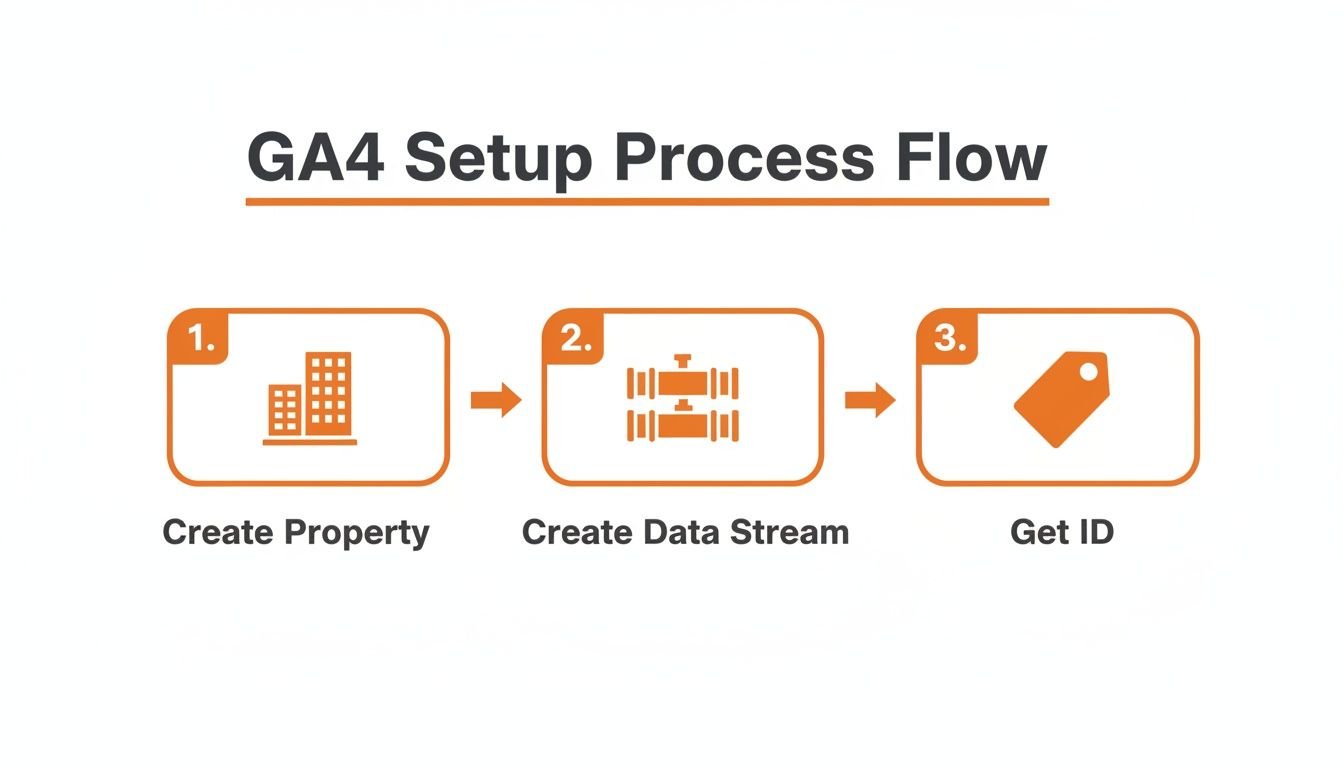
This simple three-step process is the foundation for a reliable GA4 implementation.
Direct Installation with gtag.js
If GTM isn't an option, you can install the code directly, but this method is prone to errors.
Go to your GA4 Admin > Data Stream > View tag instructions, then choose Install manually. You'll see a JavaScript code snippet.
This entire block of code must be placed inside the <head> section of every single page on your website.
- For WordPress: Use your theme's built-in section for header scripts. Avoid editing
header.phpdirectly, as your changes will be lost during theme updates. - For Shopify: Go to Online Store > Themes, click Edit code, open
theme.liquid, and paste the snippet right after the opening<head>tag.
Expert Tip: The most common mistake is placing the code in the
<body>or footer. This causes the script to load late, leading to missed pageviews and inaccurate data. It must be high up in the<head>.
A correct setup is non-negotiable. Bad data leads to bad decisions and wasted marketing budget. If you're unsure, getting expert help now prevents costly mistakes later. For more on fine-tuning, see our guide on how to make adjustments to your Google Analytics.
Tracking the Events That Actually Drive Leads and Sales

If you're only tracking pageviews, you’re missing the actions that generate revenue. To truly understand your marketing ROI, you must measure the specific user actions that lead to a sale. This is where GA4's event-based model excels, moving you beyond vanity metrics to focus on what matters.
The good news is GA4's Enhanced Measurement feature already tracks key interactions out of the box.
What Enhanced Measurement Tracks for You
By default, GA4 captures user behaviors that signal real engagement:
- Scrolls: Logs an event when someone scrolls 90% down a page, showing which content is being read.
- Outbound Clicks: See every time a user clicks a link to leave your site.
- File Downloads: Offering PDFs or case studies? GA4 tracks every download, measuring your lead magnet's performance.
- Site Search: Discover what visitors are looking for by tracking terms they use in your site's search bar—a goldmine for SEO and content strategy.
These automatic events provide a great foundation. But the real power comes from creating custom events tied to your specific business goals.
Setting Up Custom Events for Your Business
A custom event is any interaction you define as important. This is how you connect user activity directly to your sales funnel. The events you create should be unique to your business.
For a local service business, tracking phone number clicks is critical. For an e-commerce store, the "add_to_cart" event is essential.
Here are practical examples of custom events that drive growth for our clients:
lead_form_submit: The most critical conversion for any service business.phone_call_click: A must-have for local businesses that rely on incoming calls for new customers.get_directions_click: Shows strong intent to visit for any business with a physical location.add_to_cart: A key micro-conversion for any online store.
These are typically set up using Google Tag Manager, where triggers can be configured for button clicks or form submissions. Once set up, you can track website visitors and pinpoint the exact behaviors that lead to a sale.
Turning Your Most Valuable Events into Conversions
Tracking an event is only half the battle. The final step is telling GA which of these events are so valuable they should be counted as a Conversion. This is what makes your data truly actionable for improving SEO and Google Ads performance.
Marking an event as a conversion in GA4 is simple.
Go to Admin > Events in your GA4 property. You'll see a list of all collected events. Find the ones that represent a real win for your business—like lead_form_submit—and flip the toggle under the "Mark as conversion" column.
That's it. From now on, GA4 will treat that event as a core business goal.
This simple step is key to connecting website activity to your bottom line. It's also essential for running smarter Google Ads campaigns, as you can import these conversions and optimize your ad spend for actions that generate real revenue.
For our clients, from law firms to local retailers, a proper conversion setup is the bedrock of a reliable marketing system. Defining and tracking the right conversions is a non-negotiable part of any digital strategy designed for growth. For a closer look, see how we handle Google Ads conversion tracking to maximize our clients' ad spend.
Linking GA4 with Google Ads for Smarter Campaigns
Setting up GA4 is step one; connecting it to your Google Ads account is where you unlock its true power. This integration turns your website data from a passive report into an active tool that directly improves campaign profitability and lowers your cost per lead. For any business serious about paid advertising, this is not optional—it's essential.
By connecting these two platforms, you bridge the gap between ad clicks and actual customer behavior, enabling decisions that directly impact your bottom line.
What This Connection Unlocks for Your Ads
Once linked, GA4 and Google Ads share crucial data, opening up a new level of campaign intelligence.
- Import the Conversions That Matter: Import your high-value GA4 conversions (like
lead_form_submit) directly into Google Ads. This tells the bidding algorithms to optimize for actions that actually generate revenue, not just clicks. - Create Laser-Focused Remarketing Lists: Use GA4's flexible audience builder to create hyper-specific segments for your Google Ads campaigns. Target users who abandoned their cart or those who watched a key service video.
- See the Entire Customer Journey: Finally get the full story. See which Google Ads campaigns and keywords are bringing in the most engaged visitors and highest-value customers.
This is especially critical for local businesses. Linking these accounts helps you optimize ad spend for local actions like phone calls and direction requests. Our guide on perfecting your Google Ads location targeting details this strategy further.
How to Link GA4 and Google Ads
The process is straightforward and done within the GA4 Admin panel. You'll need admin permissions on both your Google Analytics and Google Ads accounts.
Expert Tip: Before linking, ensure "Auto-tagging" is enabled in your Google Ads settings. This feature is essential for GA4 to correctly attribute traffic and conversions back to your campaigns. Without it, the entire integration is useless.
The market has standardized on GA4. Projections show that by 2025, over 37.9 million websites will be using Google Analytics, commanding a 43% market share. For your business, a correctly linked account translates directly to lower acquisition costs and higher conversions. You can discover additional insights about Google Analytics' market dominance on electroiq.com.
Ultimately, a clean connection between GA4 and Google Ads is what allows you to maximize your ad spend. If your PPC campaigns aren't profitable, a broken or missing integration is a likely culprit.
Common Questions About Setting Up GA4
Even with a guide, setting up GA4 can feel daunting. Here are answers to the most common questions we hear from business owners, designed to help you move forward with confidence.
How Long Until I See Data in GA4?
After your GA4 tag is installed, you should see activity in the Realtime report within minutes. This is your first sign that it's working.
However, standard reports need 24 to 48 hours to fully populate. Don't panic if they are empty at first. If the Realtime report shows activity, your setup is correct, and the other reports will catch up.
Can I Set Up GA4 Myself, or Should I Hire an Expert?
You can handle a basic GA4 installation yourself. But the true value of GA4 isn't just installing a code; it's the custom configuration that measures what drives your business forward. A DIY setup often seems to work but quietly feeds you bad data, leading to poor marketing decisions that waste time and money.
An experienced professional ensures:
- Guaranteed Accuracy: We prevent the small data collection errors that lead to useless reports.
- Goal-Oriented Event Tracking: We help you track custom events that matter—form submissions, phone call clicks, and quote requests—not just default metrics.
- Seamless Integration: We properly link GA4 with critical tools like Google Ads and Google Search Console, which is essential for measuring the true ROI of your marketing.
Hiring an expert isn't about cost; it's an investment in data you can trust to make profitable decisions.
What Are the Most Common GA4 Setup Mistakes?
We've fixed hundreds of broken GA4 installations, and the same mistakes appear repeatedly. Avoid these common pitfalls:
- Incorrect Tag Placement: Placing the GA4 code in the footer instead of the
<head>section. This causes the tag to load late, missing critical data. - Forgetting to Enable Enhanced Measurement: Leaving this powerful feature disabled means valuable engagement data is thrown away.
- Not Marking Key Events as Conversions: Tracking an event like
lead_form_submitis useless if you don't tell GA it's a "Conversion." This step is what flags which actions are most valuable to your business.
How Does GA4 Specifically Help My Local Business?
GA4 is a powerhouse for local businesses. It proves that your Local SEO and Google Ads are working by bridging the gap between an online search and a customer in your store.
With the right setup, GA4 can track high-intent actions that directly lead to new business in your area. You can finally measure:
- Clicks on your phone number from users searching on mobile.
- Requests for driving directions to your location.
- Form submissions from people who found you through "near me" searches.
This data is gold. It provides a clear picture of which marketing channels are driving calls, leads, and foot traffic, allowing you to invest your budget where it will have the greatest impact.
A flawless GA4 setup is the foundation of any smart digital marketing strategy. It gives you the clarity to make decisions that grow your bottom line. If you want to be certain your analytics are accurate, actionable, and aligned with your revenue goals, our team of experts is ready to help.
Contact us today to schedule a free consultation and let's turn your website data into your most powerful growth asset.